 View the Agenda
 Book a Building Tour
 Book Your Exhibit Space
 Explore the Exhibit Hall
 Become a Sponsor
 View Sponsors & Partners
 Reserve Hotel Rooms
 Discounted Plane Tickets
 Read Case Studies
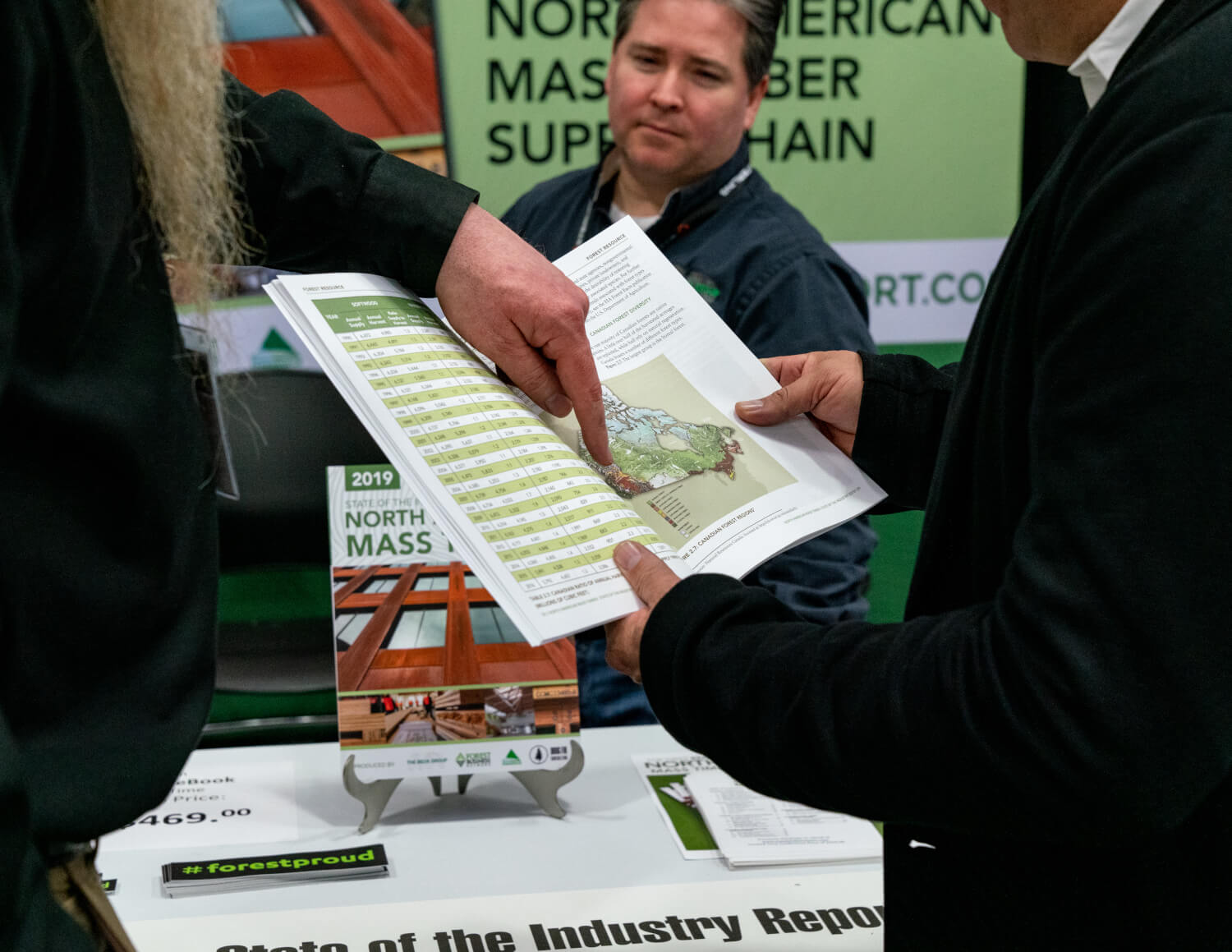 Download Past Reports
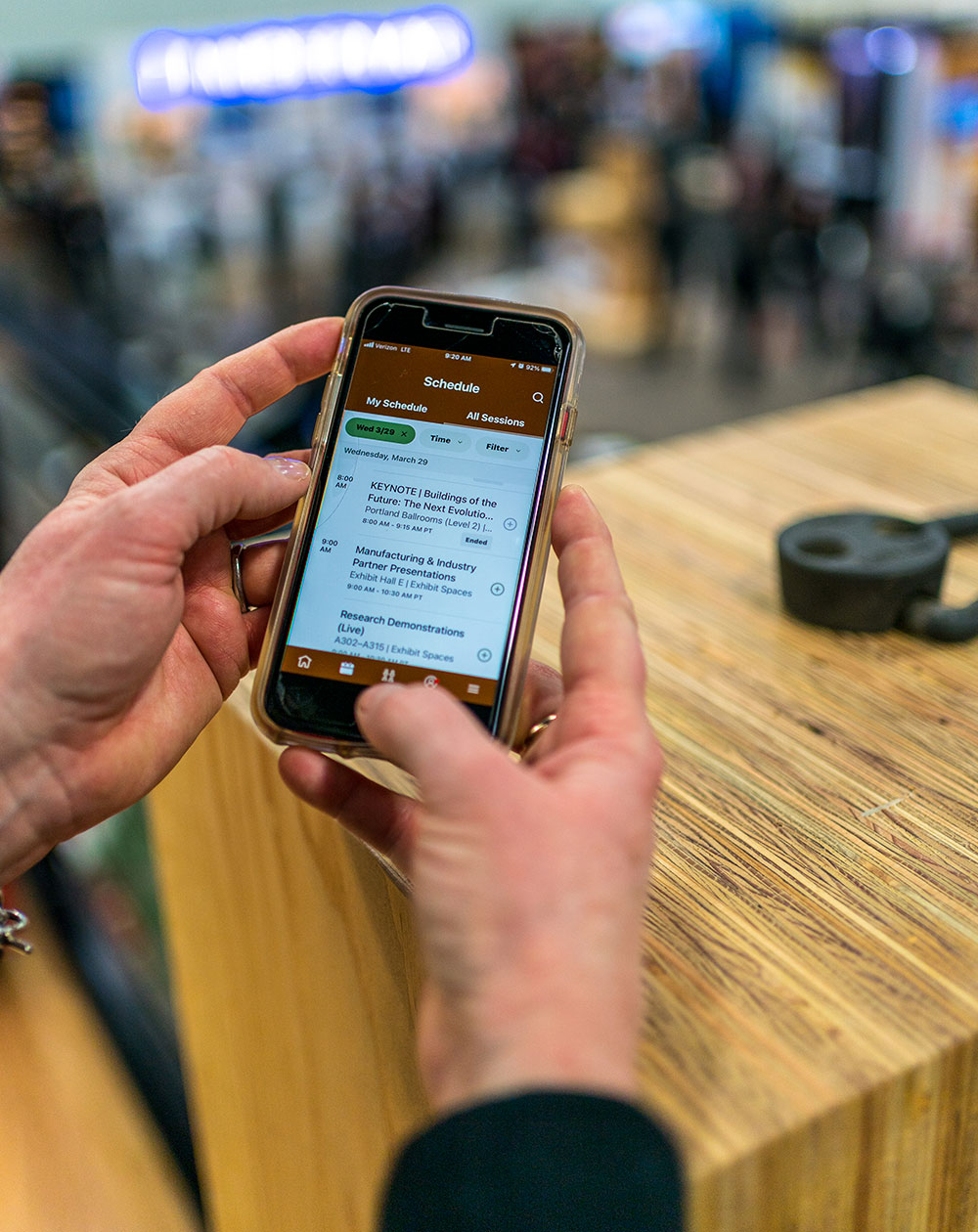
Mobile App
Download and Engage Now
The 2026 Mobile App is Live
Download the app today and start engaging with fellow attendees.
- Message attendees and exhibitors, and join group discussions
- Build and save a custom schedule
- And more
Instructions for Downloading
- Go to the app store on your mobile device and search for “mass timber.” Or download from these links…
- Click the download icon, open the conference app, and then click the 2026 download icon.
- Once downloaded, you can either log in immediately or skip to go directly into the app. NOTE: Log in is required if you want to create a profile and access the attendee list and community discussions.
- To officially log in to the app, click the profile/person icon on the bottom bar or any of the green log in buttons.
- It will prompt a screen that requires you to enter your first name, last name, and email address. NOTE: The email address must be the same one you used to register.
- A verification code will be sent to your email and/or mobile number. Check your spam folder and junk folders for this verification email, just in case.
- After that step is complete, you should have full access to the Mass Timber Conference attendee list, messaging, etc.
Troubleshooting Log In
- Ensure you are entering the same email you registered with for the event.
- Check spam and junk folders for the verification code email.
- The email or text should be triggered in less than a minute.
- If you still do not receive the verification code and/or need help, contact MCI Support…
- +1 (972) 349-5453
- If you do need to log in again, you will be sent a new verification code to enter.
NoteAffect Log In & Troubleshooting
- Once you log into the Mass Timber Conference app, just click the NoteAffect link on the homepage of the app and/or the link in the hamburger menu and it will take you to a sign in page in a browser in your mobile device.
- You are required to provide your email and registration confirmation number.
- To find your registration confirmation number, look for the confirmation email you received when registering for the conference. If you cannot find this email or number, note that we will have your confirmation number printed on your name badge (that you receive once you check in to the event).
- You may also try contacting MCI Support and they may be able to help in getting you the confirmation number.
- +1 (972) 349-5453
- NOTE: We have noticed a “hang up” when trying to return from NoteAffect to the event app (you may see a constant spinning wheel). If this happens, just click the arrow in the upper left corner or double click the home icon and you will be taken back to the app. We hope to fix this issue soon.
- NOTE: MCI Support cannot help with any questions about NoteAffect, other than potentially helping you find the confirmation number for logging into the NoteAffect site.